
Connect to Operto Teams to Felix
Complete these steps then sign up below.


These instructions are for customers who have completed an initial demo of Operto Teams.
If you have not yet had a demo, please schedule one before signing up:
Request a Demo
IMPORTANT: Do not connect the Felix Account to VRScheduler until STEP 2 is complete.
If the Felix Account is connected without the correct length propKey's in place, all properties will need to be deleted from VRScheduler and reimported.
Step 1
Log into your Felix Account.
Navigate to Account --> Account Access.
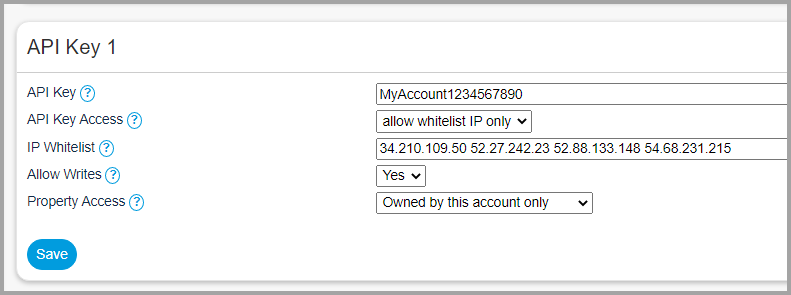
In the next empty API Key area enter:
API Key: Chosen by you, MINIMUM 16 CHARACTERS or connection will not work.
Copy the API Key. It will be entered when making the connection to VRScheduler
API Access Key: allow whitelist IP only
IP Whitelist: 34.210.109.50 52.27.242.23 52.88.133.148 54.68.231.215 34.208.116.10
Allow Writes: Yes
Property Access: Owned by this account only
Navigate to Account --> Account Access.
In the next empty API Key area enter:
API Key: Chosen by you, MINIMUM 16 CHARACTERS or connection will not work.
Copy the API Key. It will be entered when making the connection to VRScheduler
API Access Key: allow whitelist IP only
IP Whitelist: 34.210.109.50 52.27.242.23 52.88.133.148 54.68.231.215 34.208.116.10
Allow Writes: Yes
Property Access: Owned by this account only
Step 2
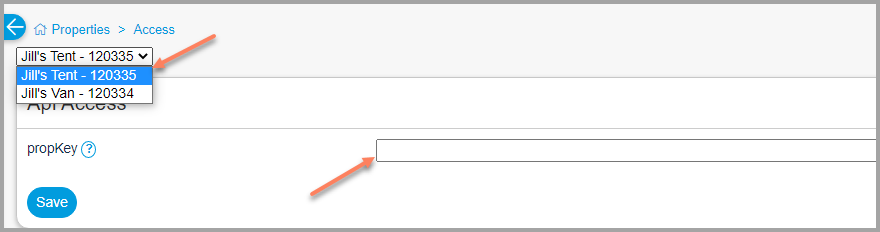
Navigate to Properties --> Access.
For each property, enter a propKey, MINIMUM 16 CHARACTERS or the connection will not work.
For each property, enter a propKey, MINIMUM 16 CHARACTERS or the connection will not work.
Copyright © Operto Teams 2026