
Connect to Operto Teams to HomeAway - Escapia
Complete these steps then sign up below.


These instructions are for customers who have completed an initial demo of Operto Teams.
If you have not yet had a demo, please schedule one before signing up:
Request a Demo
Step 1: Request Partner Connection
In this step, contact HomeAway to request the VRScheduler partner HSAPI connection in your dashboard.
- Navigate to the HomeAway Contact Page:
Escapia Clients: http://support.homeawaysoftware.com/Escapia/contact - From the support portal, choose Setup then Email:
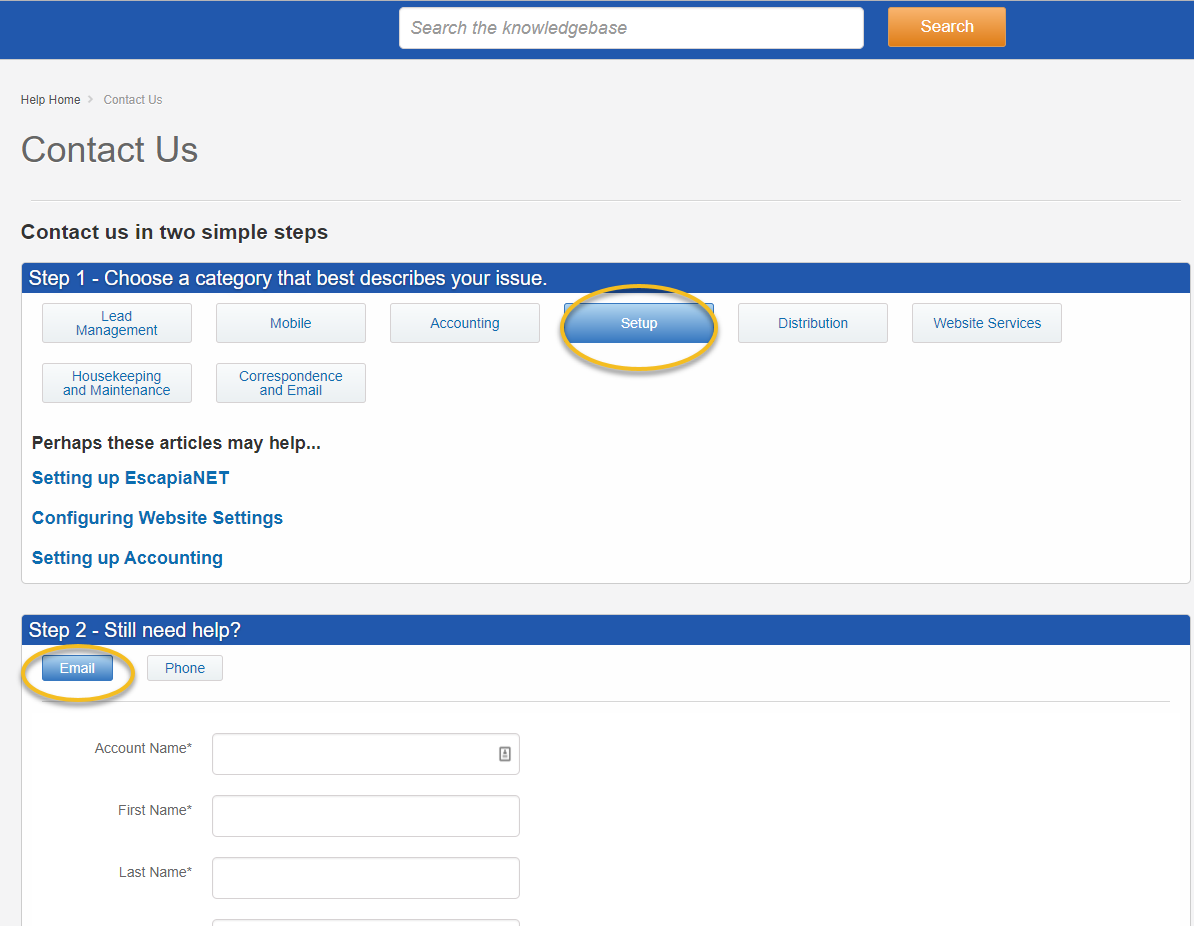
- Enter your information. Copy the following content for the Subject and Text fields.
Subject: Partner Connection for VRScheduler via HSAPI and add VRScheduler to ENET.
Text: Please connect the partner VRScheduler via HSAPI to my account. Please add VRScheduler as a network partner in EscapiaNet. My VRScheduler Contact is: Jill Mason - jill(@)vrscheduler.com
Step 2: Enable Partner and Permissions
Once your request has been accomodated by HomeAway (24-48 hours), log into your Escapia dashboard and add VRScheduler as a partner, then give the necessary permissions.
- Go to the HomeAway Partner Picker Page:
Instructions: https://support.escapia.com/articles/en_US/Article/HASW-HSAPI-Partner-Integration-Information?q=hsapi&subdir=partner - On the Edit Permissions page
- Check Enable Partner at the top.
- Check Can Access Unit Addresses at the top.
- Check the following methods access permisions:
- SearchUnitSummaries
- GetUnitByID
- SearchReservationSummaries
- GetReservationByNumber
- SearchOwners
Step 3: Choose properties to include in VRScheduler feed through EscapiaNET
- In Escapia navigate to: Admin Setup EscapiaNET Join Escapia NET I Agree. You may have to agree to the terms and conditions at this point.
- Find VRScheduler in the list and choose Unit Distribution
- Choose Operto Teams for each property you would like to include in the feed.
Copyright © Operto Teams 2026